
LibreChat Logo

LibreChat is a generative artificial intelligence (AI) service that gives the URI community access to multiple large language models in one interface. Use LibreChat to brainstorm ideas, create and revise content, analyze information, and assist with other academic and administrative tasks.

Want to try LibreChat? If you’re not already enrolled, you can request access using the steps outlined in the Access tab on this page. By using this service, you agree to the Terms of Use.

Executive Lead

Karen Lokey

Technical Lead

Chi Shen
cshen@uri.edu

Support Team

ITS AI

About the Service:

Features

  • Multiple AI models: Choose from available large language models based on the task you want to complete.
  • Writing and brainstorming: Generate ideas and create, summarize, revise, or reorganize content.
  • Information analysis: Work with information and data to identify patterns, develop ideas, or simplify complex material.
  • Personalized experience: Adjust available settings and features to customize your LibreChat experience.
  • Protected conversations: Conversations are not used to train or improve public AI models.

Access

Note: Use of LibreChat requires acceptance of the Terms of Use. Please review the terms before requesting access.

Request access:

Access to LibreChat is determined by membership in the Google Group “its-librechat-users”

  1. Go to the Google Group “its-librechat-users”. If you can already view messages, you’re a member and no further action is needed.
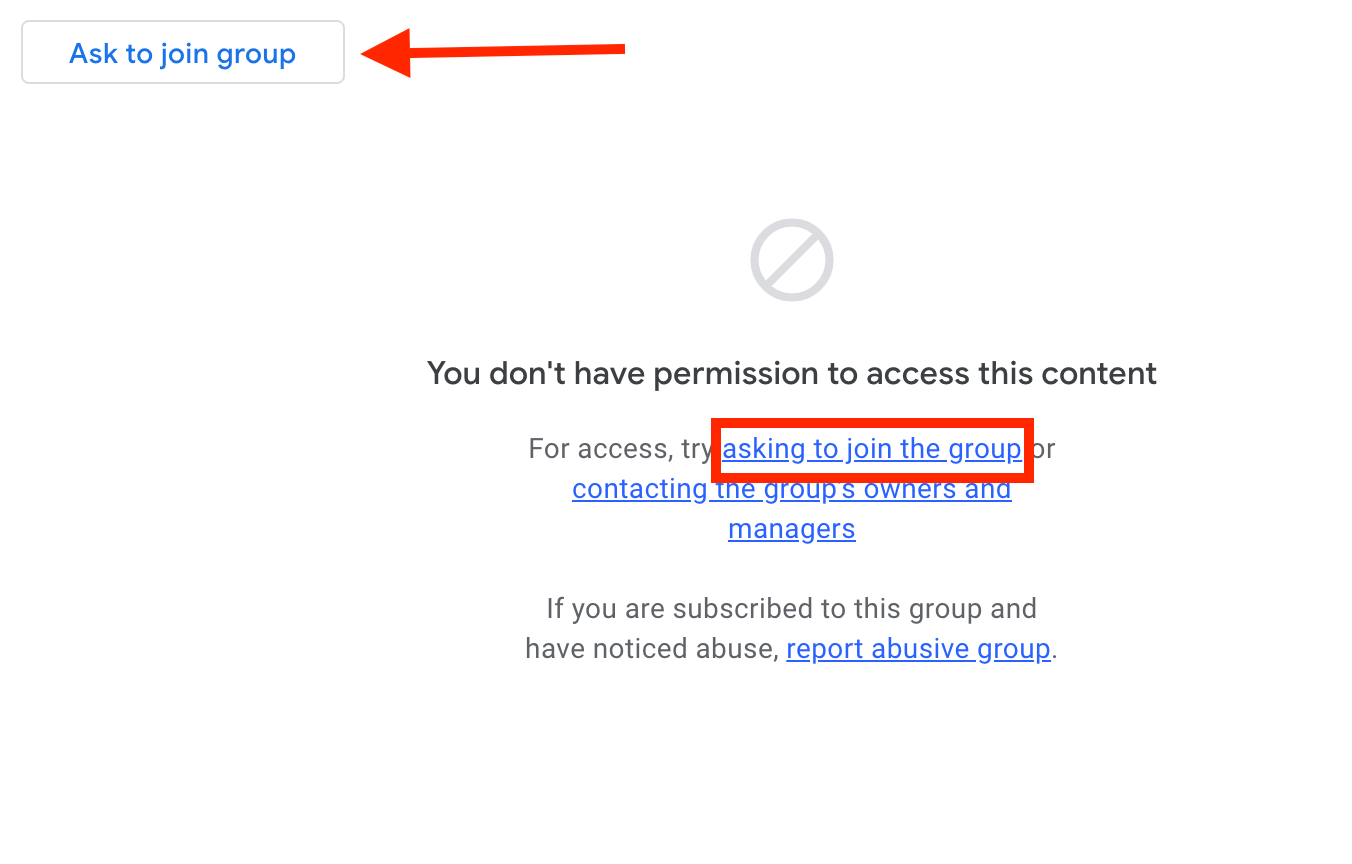
  2. If not, click “ask to join the group” Google groups screen with arrow pointing to "ask to join group"
  3. Once approved, you’ll receive a confirmation email. Access to LibreChat will be granted approximately 30 minutes later. See the next section for login steps.

Logging in:

Support and Training

When using LibreChat for University work, follow the Responsible Use of AI at URI guidance for the secure, ethical, and responsible use of AI.

For ideas and examples of how to use generative AI for learning, teaching, and University work, see Using AI at URI.

For technical issues with LibreChat, contact the ITS Service Desk.

Resources

LibreChat User Interface Guide 

  1. Getting Started –
    • Important URLs and Resource URLs 
  2. Main Interface Overview –
    • Screen Captures and Explanations of LibreChat Functionality 
  3. New Version Features for Chat Window –
    • Highlights of New Features. 
  4. Current LLM Options –
    • A list and description of all our available LLMs within our LibreChat environment. 
  5. Prompts –
    • The Prompts Feature allows you to create, manage, and reuse standardized prompts with variables. 
  6. Memories –
    • Memories are designed to help users manage and organize important information across chats to create a persistent knowledge base. 
  7. Parameters –
    • List of all Parameters for each LLM available 
  8. Bookmarks –
    • Allows users to save specific conversations or messages for quick access. 
  9. Presets – (DEPRECATED)
    • Pre-configured conversation templates that allow users to save and reuse specific combinations of Ai model settings, system prompts, and conversation parameters. 
  10. Share / Export Conversation –
    • Allows users to generate a unique, view-only link to a chat, enabling them to collaborate, share prompts, get feedback, or report issues with others who don’t have direct access to their Chat instance. 
  11. Add Multi-Conversations –
    • Allows you to engage multiple AI models or assistants simultaneously in a single conversation thread. 
  12. Temporary Chat –
    • provides users with a way to engage in conversations that are not saved or stored, ensuring privacy and confidentiality. 
  13. Attach Files –
    • allows users to upload and share files directly within chat sessions. 
  14. Tools (Chat Window) –
    • Review of the current Tools installed within each Chat conversation. 
  15. LibreChat Mic / Speech –
    • This feature provides a hands-free, convenient way to communicate, making interactions more natural and accessible. 
  16. Agent Builder –
    • Allows users to create custom AI agents tailored to specific tasks or domains.
  17. Conversation Fork Options –
    • The Fork feature essentially gives you version control for conversations, allowing you to branch, experiment, and maintain multiple conversation threads while preserving your work history 
  18. Feedback Icons –
    • These icons provide a simple and intuitive way for users to give feedback on the quality and relevance of the Ai’s responses, which will further train their LLM. 
  19. Assistant Builder –
    • Assistants are tailored for specific tasks or domains, offering specialized conversational experiences beyond general chat interactions. 
  20. Advanced Configuration / Future Directions –  
    • Ai evolving beyond traditional conversational Ai, into a comprehensive platform that leverages cutting-edge technologies like Agentic Ai assistants and Model Context Protocol (MCP) servers.