
Microsoft Copilot

Microsoft 365 Copilot Chat is an AI tool that lets users ask questions, get summaries, draft content, and retrieve information through a simple chat interface. All faculty, staff, and students at URI have access to the base level of this tool through the Microsoft 365 suite.

While this provides access to a useful set of AI prompting capabilities, please note that more advanced features of Microsoft Copilot, such as integration across Microsoft tools like Word, PowerPoint, and Excel, are not available at this time.

Executive Lead

Robert Viens

Technical Lead

Mark Oliver
moliver@uri.edu

Support Team

ITS Community Services
Tier 2 Support

About the Service:

Features

  • AI Assistance: Ask questions and get clear, conversational answers powered by AI.
  • Content Support: Draft, rewrite, or summarize text to save time and improve clarity.
  • File Uploads: Share documents for quick analysis, summaries, or idea generation.
  • In-App Access: Use Copilot Chat in Word, Excel, PowerPoint, Outlook, and OneNote to get context-aware help.
  • Web Insights: Pull in information from the public web to enhance your work.
  • Flexible Use: Apply Copilot Chat to brainstorm, learn new topics, or refine communication across tasks.

Access

Sign In:

Support and Training

Resources:

Get Help:

For questions or consultations regarding Microsoft 365 Copilot chat, contact the ITS Service Desk at helpdesk@uri.edu or explore the Microsoft Support Center.

 

Wordpress Logo

WordPress is URI’s open-source content management system (CMS), enabling the efficient creation and maintenance of institutional websites.

Managed by External Relations and Communications, WordPress supports a unified and professional web presence for the university, guided by the URI Web Policy.

Get Help

For more information or to request a consultation about WordPress, contact the ITS Service Desk.

Additional Resources

Executive Lead

Brandon Fuller

Technical Lead

Brandon Fuller
bjcfuller@uri.edu

Support Team

Distributed IT
URI External Relations and Communications

WebAdmit Logo

WebAdmit is the enrollment management system used by URI’s Graduate School for graduate admissions through GradCAS, BusinessCAS, EngineeringCAS, CSDCAS, or PTCAS. This platform streamlines the application and admission processes for graduate programs, supporting the university’s enrollment management goals.

Get Help

For additional information or to request a consultation regarding WebAdmit, contact the ITS Service Desk.

Additional Resources

Visit the URI Graduate School Admissions website for more details.

Executive Lead

Corinne Kulesh

Technical Lead

Mike Anzalone
manzalone@uri.edu

Support Team

Distributed IT
Graduate School


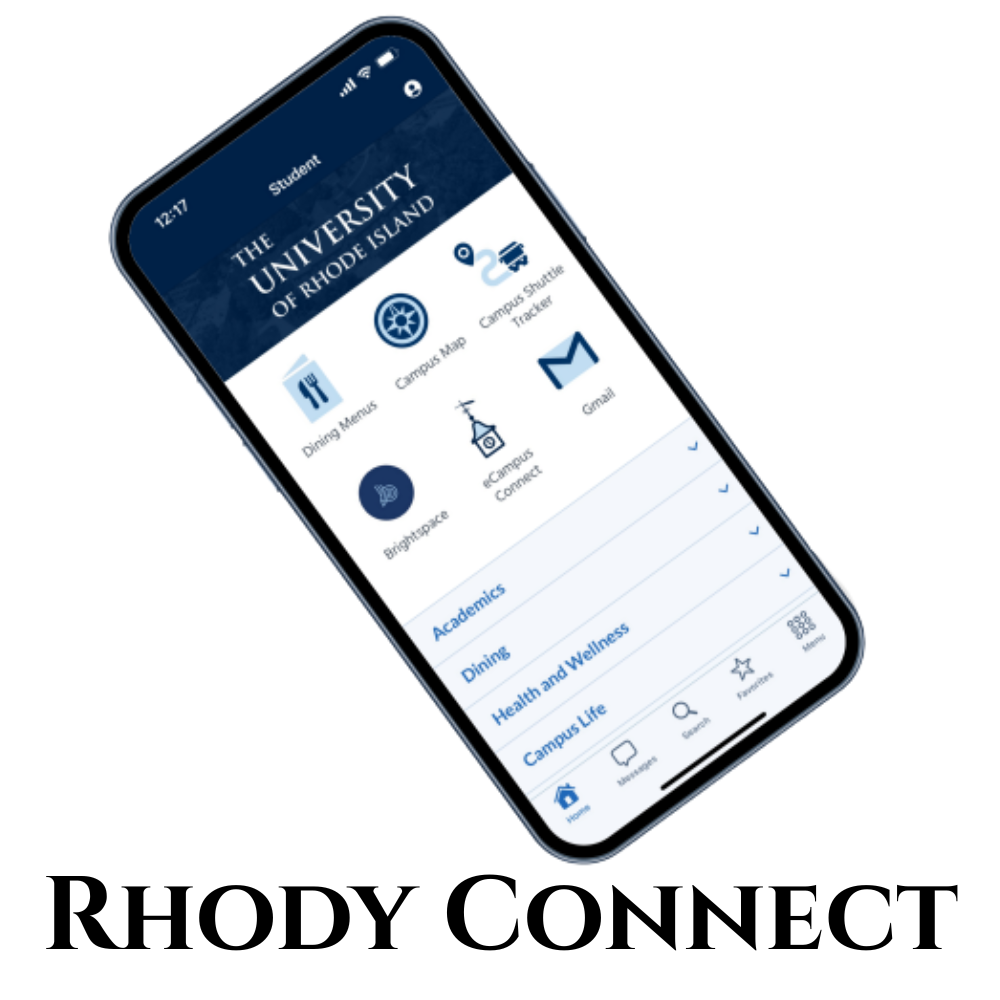
Rhody Connect with image of phone and app icons

Rhody Connect is the official mobile app of the University of Rhode Island, offering an all-in-one experience for students, faculty, staff, alumni, and visitors. Available on Apple and Android devices, the app provides seamless access to university tools and information through a personalized, mobile-first interface.

With URI Single Sign-On (SSO), users can log in once to access key campus systems like Brightspace, Gmail, and Starfish. The app also includes real-time campus info, transportation tools, maps, event details, and more.

If you’d like to request a new module or contribute content to the app, see the contribution guidelines.

Executive Lead

Cathy White

Technical Lead

Cathy White
cathywhite@uri.edu

Support Team

ITS Innovation

About the Service:

Features

  • Access Brightspace, Gmail, Starfish, and your Virtual ID card via SSO
  • View shuttle routes and live bus locations
  • See daily dining menus and dining hall camera feeds
  • Order food with your Virtual ID
  • Search campus directories
  • View and manage your Ram Account balance
  • Use the interactive campus map with accessibility details
  • Schedule curb-to-curb rides with Rhody Safe Rides
  • Get alerts and campus news
  • Track URI Athletics and Club Sports
  • Stream Ryan Center events or purchase tickets
  • Access Handshake job listings
  • Submit maintenance requests

Access

Get the App
Rhody Connect is available for download on Apple and Android devices. Click the appropriate link below to download the app directly to your mobile device.

Apple App Store Logo
Get it on Google Play

Support and Training

Feedback

Help us improve Rhody Connect!
Email suggestions to urimobile@uri.edu or fill out our feedback survey.

Available Knowledge Base Articles:


perceptive content logo

Perceptive Content 7 is URI’s document imaging and management system, used by multiple offices to store electronic versions of paper files. Primarily a scan-and-save tool, Perceptive Content integrates seamlessly with URI’s eCampus systems, serving as a secure repository for structured and unstructured content. It enables efficient document management through indexing and folder structures tied to student and employee profiles in eCampus.

Executive Lead

Scotia Roopnarine

Technical Lead

Colleen Molt
colleen_joseph@uri.edu

Support Team

ITS Enterprise Applications

Features

  • Content Repository: Securely store and manage electronic documents, including historical Nolij Web files.
  • eCampus Integration: Index and organize content within student or employee folders directly linked to PeopleSoft (eCampus).
  • Browser Access: Use Perceptive Experience to manage and view content from any desktop browser.
  • Custom Folder Structures: Organize folders and documents with flexible indexing options for streamlined access.

Get Help

For more information or to request a consultation about Perceptive Content 7, contact the ITS Service Desk.

snagit logo

Snagit is a versatile screen capture and recording tool that allows users to take high-quality screenshots, record screen activity with audio, and create annotated instructional content. Ideal for teaching, presentations, and documentation, Snagit supports image and video capture across full screens, specific regions, or scrolling windows. It integrates directly with tools like Camtasia and Panopto, and is compatible with both Windows and macOS systems.

Executive Lead

Michelle Rogers

Technical Lead

Sonia Benevides
sonia.benevides@uri.edu

Support Team

ITS Teaching and Learning

About the Service:

Features

  • Screen Capture: Capture entire screens, regions, windows, or scrolling content.
  • Video Recording: Record video and audio of desktop activity for tutorials or demonstrations.
  • Editing Tools: Annotate, blur, crop, and highlight captured content.
  • Integration: Seamlessly exports to Camtasia and Panopto.
  • Cross-Platform Support: Available for both MacOS and Windows devices.

Access

Note: Please review TechSmith’s Terms of Service before requesting access.

Eligibility

URI faculty, staff, and contracted Teaching Assistants (TAs) and Graduate Assistants (GAs) in instructional roles are eligible to install Snagit on up to two devices:

  • One on a URI-managed device, and
  • One on a personal (non-managed) computer

Install Snagit

For University-Managed Devices (URI-owned)

  1. Submit a ticket via the Service Portal requesting Snagit installation. Please indicate whether the device is University‑owned or personal/home. If University‑owned, include the device Service Tag (Dell) or Serial Number (Apple).
  2. Information Technology (IT) will install and automatically license Snagit on your device.
  3. Snagit will be ready to use once IT completes the setup.

Users on URI‑managed devices are expected to join the Snagit-Users Google Group so they receive service updates, reset notifications, and are included in usage reporting. Membership is not automatic.

How to join:

  1. Go to the Snagit-Users Google Group.
  2. If you can view messages, you are already a member.
  3. If not, click “Join group.”
  4. You will see a welcome message inside the group after you join.

For Personal Devices (Non-managed)

Step 1: Download and Install Snagit
Download Snagit directly from TechSmith and complete the installation.

Step 2: Join the Snagit-Users Google Group (Required)
Access to the activation code is granted through membership in the Snagit-Users Google Group.

How to join:

  1. Go to the Snagit-Users Google Group.
  2. If you can view messages, you are already a member.
  3. If not, click “Join group.”
  4. You will see a welcome message inside the group after you join.
  5. Your access will update automatically within a few minutes.

Step 3: Retrieve the URI Activation Code
After you join the group:

  1. Go to the Software Download Portal using your URI SSO.
  2. Open the TechSmith folder.
  3. Open the Snagit subfolder.
  4. Download the PDF containing your activation code.
  5. Enter the code when prompted in the application.

If You Are Asked to Re-Activate

Snagit activation codes are reset periodically (typically once per year).

If Snagit prompts you to re‑activate:

  • Follow the instructions provided at that time to re-enter the activation code.
  • Additional sign‑in or verification steps may be required.

Support and Training

Snagit Consultations and Support

  • For 1:1 consultation or support with Snagit, please contact Casey Seitor by email at C.Seiter@techsmith.com.

Video Tutorials

TechSmith Resources


CBORD and the URI GET program is a software package utilized by URI Dining Services to manage and provide customer access to a wide variety of URI food service programs. Access is via the Single Sign On (SSO) URI portal for Microsoft 365 (myapps.microsoft.com).

If you require additional information or require consultation please contact the ITS Service Desk.

Access the URI dining portal

Executive Lead

Shaun Kavanagh

Technical Lead

Shaun Kavanagh
shaun@uri.edu

Support Team

Distributed IT
Dining Services

About GET

GET is a place where students (and parents) can manage their campus card accounts, find places to eat and more. GET provides valuable information about account balances and spending history, and enables you to report a lost or stolen card at any time of day or night.

For Parents:

GET allows you to deposit funds into your student’s campus accounts.

Visit the URI dining services full website for full details:

URI dining services

ArcGIS offers unique capabilities and flexible licensing for applying location-based analytics to your business practices. Gain greater insights using contextual tools to visualize and analyze your data. Collaborate and share via maps, apps, dashboards and reports.

If you require additional information or require consultation please:

visit the GIS website

Executive Lead

Charles Labash

Technical Lead

Mark Oliver
moliver@uri.edu

Support Team

ITS Community Services
Tier 2 Support

Undergraduate admissions CRM system. Used by students to apply to URI and staff to complete the process up to the deposit stage of new student processing.

Slate is an enrollment management system utilized by the URI Admissions program to manage undergraduate student enrollment. If you require additional information or consultation, please contact the ITS Service Desk.

Please visit the URI Undergraduate School Admissions website for more information.

undergraduate school admissions

Executive Lead

Dan Creavin – UG
Corinne Kulesh – G

Technical Lead

Mike Burns – UG
michaelb@uri.edu
Mike Anzalone – G
manzalone@uri.edu

Support Team

ITS Enterprise Applications

Camtasia is a powerful screen recording and video editing tool available for URI faculty, staff, and teaching assistants. Designed for creating instructional and multimedia content, Camtasia offers an extensive library of customizable templates, motion graphics, and themes. Videos created in Camtasia can be uploaded directly to Panopto for seamless integration with your courses.

Executive Lead

Michelle Rogers

Technical Lead

Sonia Benevides
sonia.benevides@uri.edu

Support Team

ITS Teaching and Learning

About the Service:

Features

  • Screen Recording: Capture your screen with high-quality video and audio.
  • Advanced Editing Tools: Add effects, transitions, and annotations using a user-friendly interface.
  • Customizable Assets: Access templates, motion graphics, and intros/outros from the TechSmith library.
  • Integration with Panopto: Upload videos directly to Panopto for easy sharing in Brightspace.
  • Cross-Platform: Compatible with both MacOS and Windows.

Access

Note: Please review TechSmith’s Terms of Service before requesting access.

Eligibility

URI faculty, staff, and contracted Teaching Assistants (TAs) and Graduate Assistants (GAs) in instructional roles are eligible to install Camtasia on up to two devices:

  • One on a URI-managed device, and
  • One on a personal (non-managed) computer

Install Camtasia

For University-Managed Devices (URI-owned)

  1. Submit a ticket via the Service Portal requesting Camtasia installation. Please indicate whether the device is University‑owned or personal/home. If University‑owned, include the device Service Tag (Dell) or Serial Number (Apple).
  2. Information Technology (IT) will install and automatically license Camtasia on your device.
  3. Camtasia will be ready to use once IT completes the setup.

Users on URI‑managed devices are expected to join the Camtasia-Users Google Group so they receive service updates, reset notifications, and are included in usage reporting. Membership is not automatic.

How to join:

  1. Go to the Camtasia-Users Google Group.
  2. If you can view messages, you are already a member.
  3. If not, click “Join group.”
  4. You will see a welcome message inside the group after you join.

For Personal Devices (Non-managed)

Step 1: Download and Install Camtasia
Download Camtasia directly from TechSmith and complete the installation.

Step 2: Join the Camtasia-Users Google Group (Required)
Access to the activation code is granted through membership in the Camtasia-Users Google Group.

How to join:

  1. Go to the Camtasia-Users Google Group.
  2. If you can view messages, you are already a member.
  3. If not, click “Join group.”
  4. You will see a welcome message inside the group after you join.
  5. Your access will update automatically within a few minutes.

Step 3: Retrieve the URI Activation Code
After you join the group:

  1. Go to the Software Download Portal using your URI SSO.
  2. Open the TechSmith folder.
  3. Open the Camtasia subfolder.
  4. Download the PDF containing your activation code.
  5. Enter the code when prompted in the application.

If You Are Asked to Re-Activate

Camtasia activation codes are reset periodically (typically once per year).

If Camtasia prompts you to re‑activate:

  • Follow the instructions provided at that time to re-enter the activation code.
  • Additional sign‑in or verification steps may be required.

Support and Training

Camtasia Consultations and Support

  • For 1:1 consultation or support with Camtasia, please contact Scott Seitor by email at C.Seiter@techsmith.com.

TechSmith Resources: