
URI’s application proxy sits between the internet and your server, routing incoming requests securely to the correct destination. If you run a server or application at URI and need it accessible via a URI web address, the application proxy handles HTTPS routing and SSL certificates — without exposing your server directly to the internet.

To request access or report an issue, contact its-citi@uri.edu.

Contact: its-citi@uri.edu (ITS Cloud & IT Infrastructure)

Features

  • Routes incoming requests to your server based on hostname
  • SSL/TLS certificate provisioning and automatic renewal
  • Your server is not directly exposed to the internet — all traffic passes through the proxy
  • High availability — traffic is rerouted automatically if a server is unreachable
  • Supports both AWS-hosted and on-premises servers

Access

Available to URI departments and teams with servers hosted at URI — either in AWS or on-premises. To request a new hostname or configuration, email its-citi@uri.edu with a description of your server and what you need.

Note: if you are looking for a managed web hosting solution rather than a proxy for your own server, see Web Hosting.

Support and Training

ITS manages the proxy infrastructure, including SSL certificate renewal and routing configuration. Support covers the proxy layer — ITS is not able to assist with issues on the backend server itself.

For questions or to report an issue, contact its-citi@uri.edu.
Need the same software environment across an entire classroom, a research group, or a department? ITS can provision a fleet of virtual computers or stream applications directly to users’ browsers — all pre-configured, consistent, and ready to use. Virtual labs are a practical solution for large-scale classroom instruction, software with limited concurrent licenses, applications that require complex setup or specialized configuration, GPU-accelerated workloads like 3D modeling and VR, and Windows-only software for users on Mac hardware.

Contact: its-citi@uri.edu (ITS Cloud & IT Infrastructure)

Virtual Computer Labs icon

Features

Virtual labs can be deployed for a wide range of needs:

  • Classroom instruction at scale — provision an identical software environment for every student in a course, eliminating setup variability and ensuring everyone starts from the same baseline (e.g., SPSS for a statistics course)
  • Seat-limited or concurrent licenses — make software with a limited number of licenses accessible to more users than physical seats allow, without purchasing individual copies (e.g., MATLAB, SAS, JMP)
  • Specialized or complex software — deliver applications that require significant setup, special configuration, or are too complex to install and maintain on individual machines (e.g., ArcGIS, ERDAS Imagine, ViewFM)
  • GPU-accelerated workloads — provide access to high-performance virtual machines with dedicated GPU resources for 3D modeling, rendering, simulation, and VR applications
  • Windows software on Mac hardware — give staff, students, or researchers access to Windows-only applications when their primary machines run macOS

ITS will assess your needs and select the right delivery approach — whether that’s a fleet of virtual machines or cloud-streamed applications — based on your use case, user volume, and software requirements.

Access

Virtual labs are available to URI departments, faculty, and research groups. To request a new lab or application deployment, contact its-citi@uri.edu to start a consultation. ITS will work with you to understand your software, licensing, and user volume requirements.

Students and end users access their virtual lab through a link or portal provided by their instructor or department — no account setup or installation is required on their end.

Looking for a browser-based Python or R environment for course instruction? See JupyterHub and R Studio Server.

Support and Training

ITS manages the underlying infrastructure — provisioning, configuration, updates, and availability. Departments are responsible for providing valid software licenses and specifying environment requirements before deployment.

For issues with an existing virtual lab, contact its-citi-triage@uri.edu. For new deployments or changes to an existing lab, contact its-citi@uri.edu.

Oracle Cloud Infrastructure (OCI) is a cloud platform used by URI ITS for select infrastructure workloads. Unlike AWS, which underpins a broad range of ITS-managed services, OCI is used narrowly — primarily to support eCampus and PeopleSoft, URI’s student information and HR system.

OCI is not available as a general-purpose platform for URI departments or end users. If you need cloud infrastructure, see AWS (Amazon Web Services) or contact its-citi@uri.edu to discuss options.

Contact: its-citi@uri.edu (ITS Cloud & IT Infrastructure)

Oracle Cloud Infrastructure

Features

  • Cloud infrastructure supporting URI’s eCampus and PeopleSoft environment
  • Compute, storage, and networking managed by ITS
  • DNS managed within OCI for relevant workloads
  • Not a general-purpose or self-service platform — for broader cloud needs, see AWS (Amazon Web Services)

Access

OCI is managed entirely by ITS and is not available for general departmental or end-user use. For cloud infrastructure needs, see AWS (Amazon Web Services) or contact its-citi@uri.edu.

Support and Training

ITS manages all OCI infrastructure. For questions, contact its-citi@uri.edu.

Store files, backups, archives, and application data in the cloud using managed object storage built on AWS. Unlike mapped drives or personal file sync tools, this service is designed for large volumes of data, automated workflows, and long-term retention.

Access is provided through an ITS-managed portal that integrates with your URI account. Two storage tiers are available: a standard tier for data you access regularly, and a deep archive tier for low-cost long-term storage of data you rarely need to retrieve. ITS will recommend the right tier based on your use case.

Contact: its-citi@uri.edu (ITS Cloud & IT Infrastructure)

Amazon S3

Features

  • Scalable cloud storage — no capacity limits, highly durable
  • Standard tier — for data that is accessed regularly
  • Deep archive tier — for long-term retention at very low cost; ideal when you need to keep large amounts of data but rarely access it
  • Access controlled through URI Single Sign-On (SSO) — sign in with your URI account, no separate credentials to manage
  • Works with common file transfer tools such as rclone, Cyberduck, and the AWS CLI
  • Data is encrypted in storage and in transit
  • Considering other storage options? OneDrive (included with Microsoft 365) for personal and collaborative file storage; Network File Shares for departmental mapped drives; Open Storage Network for large-scale research data that does not contain HIPAA, FERPA, or other sensitive information

Access

Available to URI faculty, staff, and departments. Contact its-citi@uri.edu with a description of your use case — what data you’re storing, roughly how much, how often you’ll need it back, and any retention requirements. ITS will provision storage and set up access.

Once provisioned, storage is typically accessed via S3-compatible clients such as Cyberduck, WinSCP, or rclone, or via command-line tools such as the AWS CLI. Browser-based read-only access is also possible.

Support and Training

ITS manages the storage infrastructure and access system. Organizing and managing the contents of your storage is your department’s responsibility.

For questions or to get started, contact its-citi@uri.edu.

1Password Logo

1Password is a secure password manager that helps you store and manage your work-related login credentials in one place. Instead of remembering multiple complex passwords, you will access 1Password using your University Single Sign-On (SSO) account.

1Password is considered a best-in-class password manager and implements advanced security features to protect your credentials. These include strong encryption, secure sharing options, and multi-factor authentication support.

Executive Lead

Michael Khalfayan

Technical Lead

Michael Khalfayan

Support Team

ITS Information Security

About the Service:

Features

Key features include a built-in password generator for creating strong, unique passwords, secure vaults to store credentials, credit cards, and sensitive documents, and cross-device synchronization for seamless access on desktop, mobile, and browser extensions. The autofill functionality simplifies logins and form filling, while Watchtower monitors for weak passwords, breaches, and security issues. Advanced tools like secure sharing options allow you to share passwords safely with family or team members.

Access

1Password is available for all full time staff or employees of the University. To get started with 1Password review the Introduction and welcome article for important details and a step-by-step guide.

IT Knowledge Base – Introduction to 1Password and How to Use It for Work

Support and Training

1Password provides support articles on every aspect of using the product.

Using 1Password | 1Password Support

Resources:


sparkle icon to indicate generative AI

The University of Rhode Island Information Technology Services (URI ITS) provides support and guidance for the effective and responsible use of generative artificial intelligence (AI) tools across teaching, research, and administrative work. Our goal is to help faculty, staff, and students use AI to enhance productivity, creativity, and learning while maintaining ethical and secure practices.

Our approach emphasizes accessibility, data protection, and informed use. Through training, resources, and community engagement, we help users understand both the potential and limitations of AI technologies.

By providing structured guidance and fostering responsible innovation, URI ITS empowers the university community to integrate generative AI thoughtfully—enhancing collaboration, efficiency, and discovery across disciplines.

Executive Lead

Karen Lokey

Technical Lead

Karen Lokey
karen_lokey@uri.edu

Support Team

ITS Innovation

About the Service:

Features

Generative AI refers to technologies that create new content—such as text, images, and data visualizations—based on patterns learned from large datasets. Unlike search engines, which retrieve existing information, generative AI produces original responses. Because these outputs are newly generated rather than sourced from specific references, users should always evaluate them critically before use.

Finding URI AI Tools

You can easily explore approved Generative AI (GenAI) tools available to you based on your role at the University of Rhode Island. 

  1. Go to: https://its.uri.edu/services/
  2. Browse or sort services:
    • Use the A-Z option if you are looking for a specific service by name.
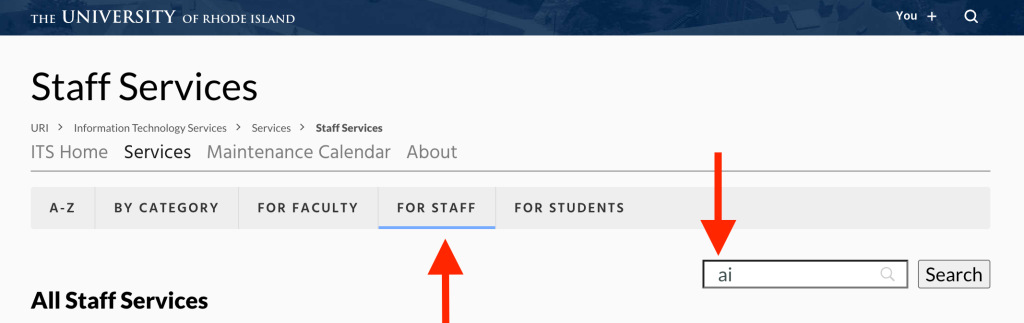
  3. Filter by role:
    • You can also select your role (for example, faculty, student, or staff) to see tools and services relevant to you. 
a filter selecting "for staff" and listing "ai" in the search window
  1. Search for AI tools: 
    • Within your role, use the search bar to type “AI.” 
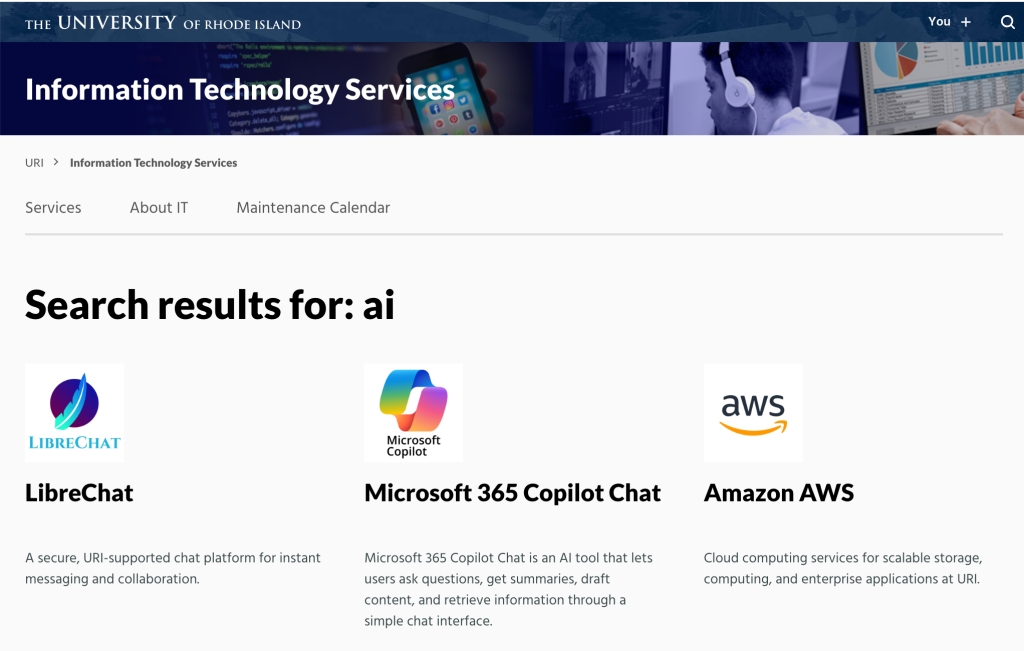
    • This will display service pages for AI-related tools vetted for use at URI. 
  2. View details: 
    • Click on the service name to open its page. 
search result for AI tools showing links to LibreChat, Microsoft 365 Copilot Chat, and Amazon AWS

Each page includes details about the tool’s features, access instructions, and available support and training resources.

Support and Training

Training resources are available in several formats. Documentation and guides can be found on individual support pages, and a variety of workshops are offered across campus throughout the year. These sessions focus on practical skills and real-world examples of how AI can assist with teaching, research, and administrative work.

We also share use cases, which are simple examples of how generative AI can help accomplish specific goals, such as improving writing, analyzing data, summarizing content, or generating new ideas.

Resources:

Brightspace Logo

As the University of Rhode Island’s public learning management system, Engage offers all URI departments and programs the ability to market their expertise and offer learning opportunities to Rhode Islander’s and beyond.

Managed by the ITS Teaching and Learning team, Engage is used for external, non-accredited, non-degree-granting continuing education and extension learning programs

Executive Lead

Michelle Rogers

Technical Lead

Kevin Gray
kevingray@uri.edu

Support Team

ITS Teaching and Learning Services

About

About

URI Engage is a second LMS instance of Brightspace without third party plugins. Engage directly supports URI’s land grant mission to serve as a community resource. It gives URI continuing education and extension programs the ability to market themselves and their programs, offer new and unique learning opportunities to the public, and generate revenue for their programs and departments.

  • External Learning Management – Supports training, certification, and non-credit courses.
  • Public Access – Designed for learners outside of URI, including professionals and community members.
  • Flexible Course Delivery – Offers self-paced and instructor-led training options.
  • Credentialing & Certification – Enables digital badging and completion tracking.
Download engage flyer

Eligibility

  • URI departments or programs may use Engage to offer non-accredited for-profit or non-profit classes, lectures, or seminars to external participants. Engage is used for non-credit continuing education or extension learning opportunities only. Alternatively, accredited degree-granting courses are offered via Brightspace, which is synced with eCampus.

How to Access URI Engage

Users – Browse and enroll in Engage courses

Instructors and departments- request access to engage

Hosting & Development

  • Faculty and departments interested in offering courses or certification programs can consult with the ITS Teaching and Learning team. The process will look like the following:
  • After submitting an IT ticket the TLS department will begin the process with you:
    1) TLS chats with you about what program or continuing education (CE) course(s) you’ll run, and helps you determine which system you’re supposed to be in.
    2) If approved to use Engage then you choose a program admin who will be granted a sub-system-administrator account in Engage.
    3) Your program sys-admin will receive training on creating course shells and adding enrollments in Engage.
    4) You may work with ATL on the instructional design of your CE course.
    5) You may obtain support from TLS on the integration of educational technologies [submit an IT ticket].
    6) You proceed to offer the ready and finalized CE course to the public.

Engage in Action

URI Master Gardeners – Educating communities in environmentally-sound gardening practices.

Home Horticulture – From URI Cooperative Extension.

Food Recovery for RI – Exploring the intersection of the food system and the environment.

View All Courses on URI Engage

Updates

Latest:

  • 12/11/25: (RESOLVED) TLS is aware of an issue related to Course Merchant/Engage enrollments. We have engaged the vendor and will provide updates as soon as they are available.

New Features:

  • New Content Experience (NCE) is a redesigned interface that makes content delivery more intuitive and efficient while improving the student digital learning experience. Coming to Engage (and Brightspace), faculty may currently opt in to try NCE for your courses. The change becomes standard for all users at the end of August 2026. During the 25/26 Academic Year, you can toggle between NCE and Classic Content Experience without IT support. IT Teaching and Learning Services is here to support your transition.
  • Course Leads.  This optional new role will give instructors enhanced access within their courses.  Specifically the ability to enroll/unenroll learners, and edit course navbars/homepages.

Documentation:

Clarifications:

  • Should you become aware of someone with duplicate accounts, please submit a service desk ticket so our team can help figure out the best path forward.
  • The best way to add a “URI” user to Engage…someone who will be running or supporting a course…is to submit a ticket to the Service Desk.  Our team is exploring alternatives to this process, but today, a Service Desk ticket is the best way.
  • Course Merchant/Engage do perform limited duplicate checking.  They check two fields when a user is created username and email address.

Support

TLS offers guidance for setting up and managing courses on URI Engage.

TLS provides assistance with course design, digital credentials, and assessment tools.

Guide to Engage Course Setup and Activation

Get Help

All IT processes start with a ticket. Please submit a ticket to the IT Service Desk requesting more information from the TLS team. We look forward to collaborating with you!

Microsoft Copilot

Microsoft 365 Copilot Chat is an AI tool that lets users ask questions, get summaries, draft content, and retrieve information through a simple chat interface. All faculty, staff, and students at URI have access to the base level of this tool through the Microsoft 365 suite.

While this provides access to a useful set of AI prompting capabilities, please note that more advanced features of Microsoft Copilot, such as integration across Microsoft tools like Word, PowerPoint, and Excel, are not available at this time.

Executive Lead

Robert Viens

Technical Lead

Mark Oliver
moliver@uri.edu

Support Team

ITS Community Services
Tier 2 Support

About the Service:

Features

  • AI Assistance: Ask questions and get clear, conversational answers powered by AI.
  • Content Support: Draft, rewrite, or summarize text to save time and improve clarity.
  • File Uploads: Share documents for quick analysis, summaries, or idea generation.
  • In-App Access: Use Copilot Chat in Word, Excel, PowerPoint, Outlook, and OneNote to get context-aware help.
  • Web Insights: Pull in information from the public web to enhance your work.
  • Flexible Use: Apply Copilot Chat to brainstorm, learn new topics, or refine communication across tasks.

Access

Sign In:

Support and Training

Resources:

Get Help:

For questions or consultations regarding Microsoft 365 Copilot chat, contact the ITS Service Desk at helpdesk@uri.edu or explore the Microsoft Support Center.


Respondus Logo

Respondus is a secure assessment tool designed to enhance online exam integrity at URI. The Respondus LockDown Browser (LDB) restricts students from printing, copying, accessing other sites, or switching applications during computer based exams. LDB is most effective for in-person computer based exams, since students could use other devices to bypass restrictions.

Executive Lead

Michelle Rogers

Technical Lead

Michelle Rogers
rogersmd@uri.edu

Support Team

ITS Teaching and Learning

About the Service:

Access

  • There is a Respondus lockdown browser (LDB) license for select departments on campus.
  • Respondus LockDown Browser (LDB) is currently approved for use on Nursing department computers. The approval does not extend to other campus departments. Other departments interested in purchasing a license may submit a Service Desk ticket to request more information.

Securing Exams

  • In-Person Exams: Lockdown Browser – LDB works to secure in-person exams only. LDB alone does not secure online remote exams. LDB requires that a client be installed on the laptop/computer for it to work with the Brightspace integration, and needs to be updated 2x per year. See below for departmental approvals.

Support

Brightspace Logo

Brightspace is URI’s learning management system (LMS). It is a web-based, mobile-friendly, hosted learning platform used for delivering course content and other online learning resources. Brightspace contains a flexible suite of tools for creating custom content for online delivery. Instructors can promote student engagement and successful learning outcomes through utilization of the many Brightspace tools and features.

Executive Lead

Michelle Rogers

Technical Lead

Kevin Gray
kevingray@uri.edu

Support Team

ITS Teaching and Learning

About the Service:

Access

Brightspace Pulse

A mobile app that helps students keep track of important updates. It brings news, deadlines, and grades together in one place so they can spend less time organizing and more time learning.

Learn How to Download and Use the Pulse App

Course Merging

Course shells are available in Brightspace 70 days prior to the start of a new term. Faculty wishing to design a course prior to shells being available can create a ‘development’ course in Brightspace.
Learn how to create a development course in Brightspace

Self-service Merges: faculty may choose to merge their sections of the same course. A merged course presents one set of content to all sections. Student rosters are also combined. The process may take 24 hours.

Complicated Merges : there are some cases in which the instructor cannot merge the necessary sections. In some cases it’s not possible – in other cases the TLS team can do it for you. Submit a service desk ticket to request a complicated merge.

See instructions for self service course merging for Brightspace courses
Attend training sessions to learn how to perform course merging
View YouTube tutorial to learn how to do self-service course merging
Read blog post on To Merge or Not to Merge Course Sections in Brightspace

Improvements AY25/26

  • A series of improvements to Brightspace and Engage will be implemented AY 25/26, all aimed at creating a more modern, intuitive, and engaging digital learning environment. These updates are designed to enhance usability, streamline access to learning resources, and provide a contemporary experience for the URI Community.|
    Refer to Brightspace Improvements AY25/26 to learn details.
  • Change management is the process of reviewing, testing, documenting, and implementing system edits, enhancements, and changes. For Brightspace request changes, we are required to follow the IT Change Management Process – which includes (but isn’t limited to) 1) a formal request from a department, and 2) processing it through the testing and then ETAC approval steps.
    Refer to How to Guide on Requesting Brightspace System or Setting Change

Integrations

  • IT provides robust connections in Brightspace with third-party Learning Tools Interoperability (LTIs) so your online and hybrid course can provide novel and engaging learning experiences.
  • In order to protect students, faculty, URI, and ensure system integrity, IT performs a standard review of all third party tools prior to approval for integration. URI must comply with laws and policy pertaining to faculty intellectual property rights, The Family Education Rights and Privacy Act (FERPA), and The Americans with Disabilities Act (ADA), financial risks, legal requirements, contractual policy, security compliance, and system limitations.
  • These external applications are not part of the base Brightspace software and require review prior to integration. In 2023 LTIs are being updated from version 1.1 to 1.3 and new LTI integrations require 1.3. The requestor submits an application that’s queued for committee review 3x a year: January, May, and August. The time between application to finalized integration depends on factors such as (but not limited to) tool complexity, vendor time, department availability, and the queue. Approved tools are subject to prioritization by the CIO and can take anywhere from 2-weeks to 6-months.
  • Refer to Brightspace Integrations page for to learn details.

Training & Support

24/7 Support – Live Chat
Look for the LiveChat icon on the home page as well as a bunch of other locations in the product – if you need help at any point, just click on the icon and get connected directly to Brightspace staff, even when the URI Service Desk is closed.

ATL Pedagogical Support
Get pedagogical support from the Office of Advancement of Teaching & Learning
Tyler Hall, 9 Greenhouse Road, Kingston, RI 02881
Web: https://web.uri.edu/atl

IT Service Desk
Get support for all issues related to eCampus, email, internet connections, wireless, smartphones and tablets, laptops, desktops and more.
Submit Support Request to IT Service Portal: https://rhody.service-now.com/sp

Virtual Service Desk: Via Zoom Sessions

Web (Training & Office Hours): https://its.uri.edu

Walk-in Support: Kingston Library, Second Floor 227

Email: helpdesk@uri.edu

Phone: 401-874-HELP (4357)

Additional Information

Check out this page for latest announcement and additional information on course shell creation, course merging, Brightspace integration requests, Pulse app, and more topics.
Go to More Info About Brightspace