Brightspace by D2L is a robust and flexible learning management system (LMS) with tools that empower both educators and learners. Yet many of its best features often go unnoticed. Whether you’re a Brightspace veteran or a newcomer, here are some key tips and tricks to help you streamline your course management and elevate the learning experience.

Checkmark icon

Bulk Edit: Save Time with Course-Wide Adjustments

The Bulk Edit feature within a course’s Table of Contents allows instructors to quickly make changes to multiple content items at once—a major timesaver during course setup or mid-semester adjustments.

What You Can Do:

  • Rename multiple topics or modules.
  • Add or update due dates and availability settings.
  • Change visibility (e.g., hide/publish multiple items at once).

This is especially helpful after copying course content from previous terms and needing to quickly reset dates or update naming conventions.

Pro Tip: Use Bulk Edit in conjunction with Manage Dates (next section) for efficient pre-semester setup.

Go to Guide: Bulk Edit Modules & Topics

Icon representing calendar

Manage Dates: Keep Your Course Schedule in Sync

When transitioning your course from one semester to another, the Manage Dates tool is your go-to resource. It gives you a centralized view of all start, due, and end dates across:

  • Assignments
  • Quizzes
  • Discussions
  • Content modules & topics

You can easily shift all dates forward or backward using the Bulk Offset feature, or selectively adjust individual deadlines.

Go to Guide: Bulk Editing Dates using Manage Dates 

Icon representing notifications

Notifications: Stay Informed, Keep Students Engaged

Brightspace’s Notification System helps both instructors and students stay updated on important course activities. All new user accounts are configured to receive course announcement emails by default. Users may opt out of these notifications if they choose to.

Alerts Include:

  • Assignment submissions
  • Discussion activity
  • New content or announcements
  • Grade updates

You can choose to receive notifications via email, SMS, or both.

🎯 Instructor Insight: Instructors, please encourage your students to adjust notifications at the beginning of the semester. This significantly improves student engagement, reduces missed deadlines, and supports proactive learning habits.

Go to Guide:  Managing Brightspace Notifications

Icon representing structure and outline

Assignment Categories: Organize and Simplify Grading

Assignment Categories allow instructors to group related assignments under specific headings in the Assignments tool. While they don’t impact grading calculations (unlike gradebook categories), they provide:

  • Clearer structure for students
  • Easier navigation
  • Better course organization for instructors

Example: Group weekly reflections under a “Journals” category or segment quizzes by unit.

Note: Assignment categories are distinct and separate from gradebook categories. Assignment categories are purely for aesthetic purposes while gradebook categories serve a function.

Go to Guide: Assignment Categories

Icon representing final grade topic

Enabling Final Grades for Students: Ensure Visibility

By default, final grades in Brightspace are not visible to students. Final Grades do not have to be just for the end of the term, it can be a useful tool to show students where they stand in the course as the term progresses. To share them, you need to both calculate and release the final grade explicitly. 

Why It’s Useful:

  • Encourages self-monitoring: Students can track their progress in real time.
  • Reduces grade-related anxiety: No surprises at the end of the term.
  • Improves transparency: Shows how each activity contributes to the overall grade.
  • Supports formative feedback: Helps students understand where to improve.

Pros and Cons of Treating Ungraded Items:

  • Drop ungraded items:
    • Pro: Allows students to see a more realistic representation of their performance as ungraded items don’t artificially lower their grade.
    • Con: Instructors must manually enter zeros for incomplete items to ensure accurate final grade calculations.
  • Treat ungraded items as 0
    • Pro: Ungraded items are automatically treated as zeros which eliminates the need for manual input by instructors.
    • Con: Any item that isn’t completed or has yet to be assigned will make the final grade inaccurately lower than the true performance of the student.

Go to Guide: Releasing Final Grades to Students

Final Thoughts

With these Brightspace tips and tricks in your toolkit, you can simplify your course management, increase efficiency, and foster a more responsive and engaging learning environment for your students. 

But that’s not all! Don’t be afraid to explore the platform further as Brightspace is full of hidden gems waiting to be discovered.

Looking for step-by-step instructions? Be sure to visit our Knowledge Base or explore D2L’s Brightspace Community for detailed documentation, video walkthroughs, and community forums.


In today’s digital education landscape, creating engaging and interactive learning materials is no longer optional—it’s essential. Lumi Education, a platform dedicated to simplifying the creation of interactive content, is helping educators, trainers, and content creators transform their teaching approaches. 

Lumi Education is one of the H5P, or HTML5 Package, editors available to create activities that allow faculty to develop a variety of interactive content for their Brightspace courses. This includes matching games, branching scenarios, and more.

Lumi Logo

Among Lumi’s many options, the Hotspot content type stands out as an innovative way to make visual content interactive and dynamic.

Here’s a closer look at Lumi Education’s Hotspot content type and how it can enhance your teaching or training materials.

Lumi Platforms

Lumi offers two main platforms for creating and managing interactive content: the Lumi Desktop application and Lumi Cloud. Both have their advantages and understanding the difference can help you choose the best option for your needs.

Lumi Desktop refers to their free downloadable app that allows users to create, edit content, and save files to their computer, while the Lumi Cloud refers to an online version of the editor that is accessed through a web browser with options of a free or paid plan.

What Is the Hotspot Content Type?

The Hotspot content type allows you to take any image and make it an interactive learning experience just by adding clickable spots that will expand and provide more information. It’s an excellent tool for creating visually engaging content that keeps learners actively involved.

Why Use Hotspot Activities?

Enhance Visual Learning
Visual aids are powerful tools in education, and the Hotspot content type makes them even more impactful. By adding interactivity, static images become rich educational experiences. Learners are encouraged to explore details, leading to deeper understanding and retention of information.

Foster Engagement
In traditional learning, students often passively consume information. With hotspots, they actively participate by exploring and interacting with the content. This approach helps keep learners engaged and motivated to dive deeper into the material.

Versatile Applications
Whether you’re teaching geography, anatomy, or art history, the hotspot feature can adapt to any subject. Highlight key landmarks on a map, label body parts, or analyze famous artworks—all with a single tool.

Learn About Berries – Sample Hotspot Content from H5P.com

Key Features

Customizable Hotspots: Place hotspots anywhere on your image, linking them to explanations, videos, external resources, or quiz questions.

Interactive Feedback: Build hotspots into activities that provide instant feedback. Whether it’s identifying landmarks on a map or labeling parts of a diagram, learners get real-time validation or correction.

Responsive Design: Hotspot activities are optimized for all devices, ensuring a seamless experience for learners on desktops, tablets, or smartphones.

Versatile Media Options:Incorporate text, images, videos, and links within hotspots, offering diverse ways to communicate information and appeal to different learning styles.

Creating Hotspots Activities with Lumi

Lumi makes it simple to create your own hotspot content using their free H5P Desktop Editor or the Lumi Cloud platform. Here’s a quick overview:

  1. Choose an Image: Select a high-quality image relevant to your lesson or topic.
  2. Add Hotspots: Use the intuitive editor to place hotspots on specific areas of the image.
  3. Insert Content: Link each hotspot to rich media such as text explanations, videos, or quizzes.
  4. Test and Share: Preview your activity to ensure it’s functioning as intended, then share it with learners via a web link or embed it in your LMS.

Need help exporting Lumi content as a SCORM package?

Check out the comprehensive guide from TLS: SCORM Export Guide.

Real-Life Applications of Hotspot Content

  • Geography Classes: Highlight countries or regions on a map with additional facts about each location.
  • Language Learning: Label items in a room or vocabulary-specific images to help learners build their lexicon.
  • Science Labs: Create interactive diagrams of cells, organs, or ecosystems.
  • Art and History: Analyze artworks or artifacts by embedding information about techniques, context, or artist biographies.

More real-life hotspot examples: https://h5p.org/image-hotspots#example=63175 

Conclusion

The Hotspot content type is a game-changer for educators who want to move beyond traditional teaching methods. Lumi Education makes it easy to create, customize, and share these engaging activities, helping learners stay interested and retain knowledge more effectively.

URI faculty have free access to the Adobe Firefly AI image generator bot. Here is how to sign up.

All faculty and staff at URI have a full Adobe suite account. After you log into your Adobe account you’ll be able to use Firefly for free.

Logging In

Option 1: The most direct way to connect is to use your URI SSO to login here: https://firefly.adobe.com/
———————————–

Option 2: You may also reach Firefly via your URI Adobe Creative Cloud homepage, as follows:

Step 1: Click here and sign into your work Adobe account using your URI SSO credentials: https://creativecloud.adobe.com

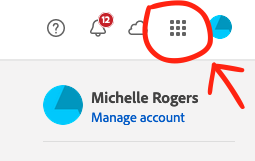
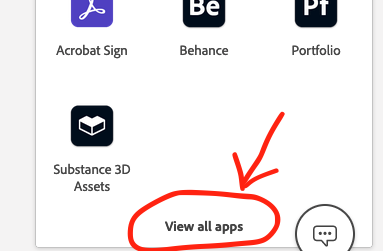
Step 2: Click on the ‘waffle’ grid in the upper right-hand of the screen and then click on ‘All Apps’

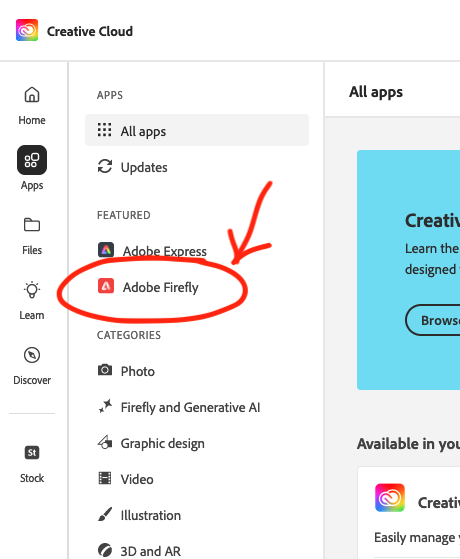
Step 3: On the left-side menu of the ‘All Apps’ page you’ll find Firefly in the menu:

Use Prompt to Enter Keywords

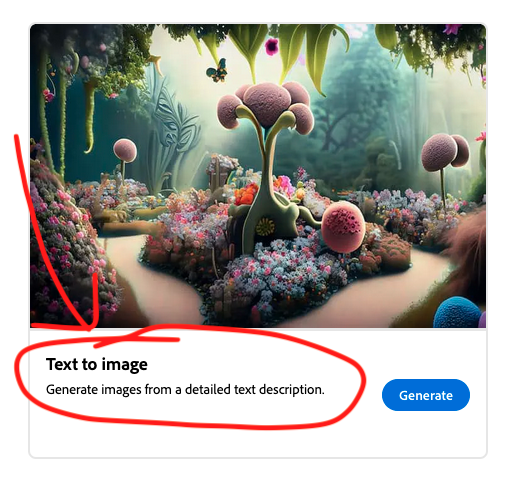
On the Firefly homepage you’ll see a variety of options for different creative tasks you can do.

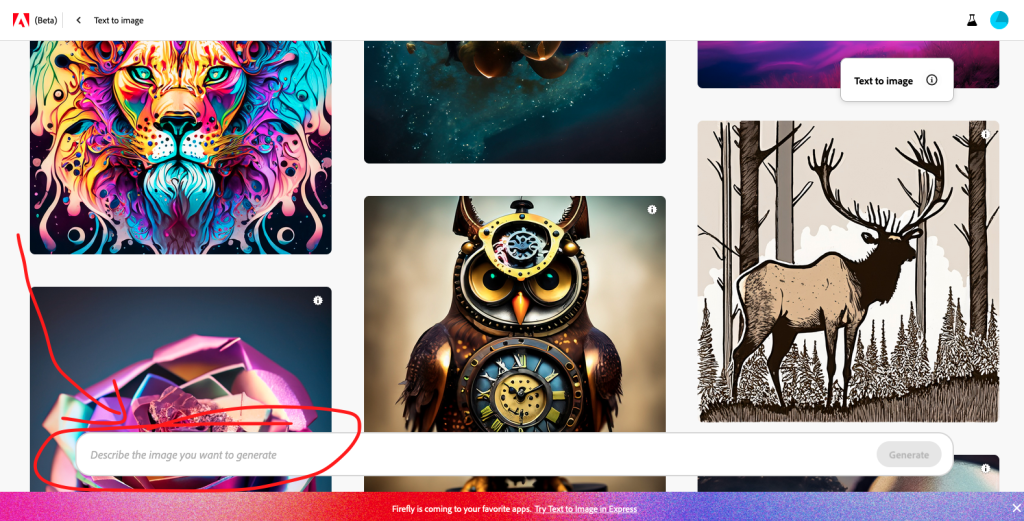
Step 1: Click on the one that says ‘Text to Image’ (this is what Midjourney and Bing AI both do too).

Step 2: Then type in your prompt.

Adobe Firefly Text Prompt Ideas

Resources

  1. AI Image generation ideas:
  2. How to create AI Art with Firefly:
  3. How to use ChatGPT to write image prompts for Firefly:
  4. Prompt Generator – create the text here and input it at Firefly to get the image:
    1. https://flowgpt.com/p/adobe-firefly-prompt-generator
  5. Comparison of prompts given to Adobe Firefly and also Midjourney to compare the output of the two different AI Image Generators:
    1. https://medium.com/@jarimh1984/transforming-visual-imagination-adobe-firefly-vs-midjourney-v5-a-comprehensive-comparison-of-661babcc0739